Parent account or standalone account in Merchant Center: why it matters and how to tell

Founder · Gezar & TheCSSPartner
Runs Gezar and TheCSSPartner, an authorised Comparison Shopping Service for Google Shopping. Grenaa, Denmark (CVR 42476226).
2 min
Before you switch CSS, find out which kind of Merchant Center account you have. It decides which ID you give us, and a wrong ID can pull a shop out of its parent account.
It takes a minute: the account picker in Merchant Center shows it.
Why it matters
A Merchant Center account is a parent account (an MCA) with sub-accounts under it, a sub-account, or a standalone account with nothing above or below it.
The switch is sent to the account whose ID you give us. If you give us the MCA, every sub-account under it follows and keeps its place. If you give us a sub-account directly, that sub-account is lifted out of the MCA and becomes standalone. It can lose what it inherited from the parent, such as shared access and a shared domain claim. This has happened to a customer before, which is why we ask.
An MCA is typically used by agencies and companies that run several shops from one place. If you are not sure whether yours is one, the account picker tells you in a few seconds.
How to see the difference in Merchant Center
Open Merchant Center and click the account picker at the top right. What it shows tells you which kind you have. Names and IDs are blurred in the pictures below.
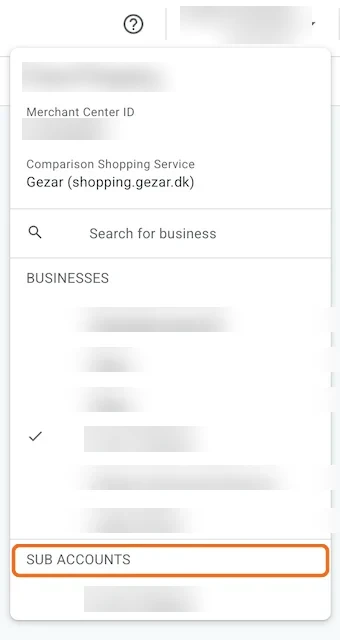
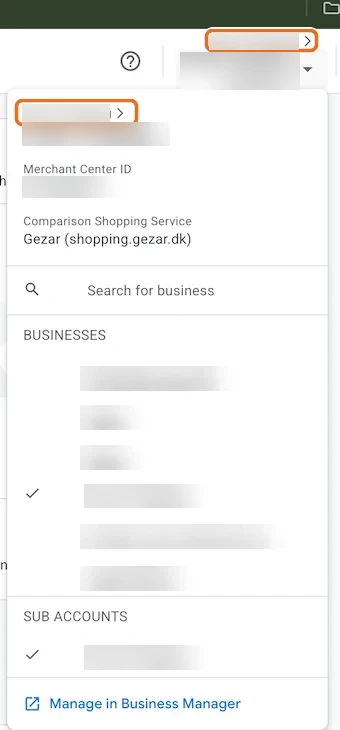
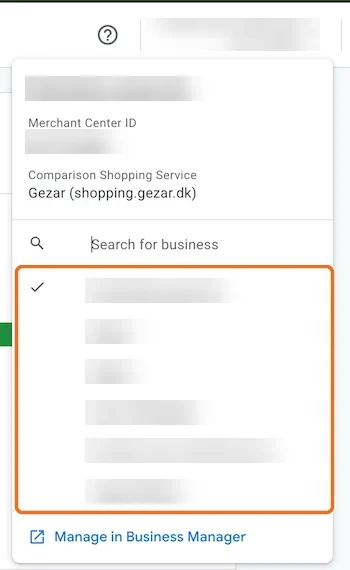
Still unsure? Write to info@thecsspartner.com before you sign up, and we will help you find out.
What happens in each case
- Parent account (MCA): you give us the parent's ID. We send one request, and every sub-account under it switches with it. The structure stays as it is.
- Sub-account: you still give us the parent's ID. A request sent to the sub-account on its own would lift it out of the MCA and make it standalone.
- Standalone account: you give us its own ID. Nothing sits above or below it, so nothing can be pulled out.
Which ID to give us
- Parent account (MCA): give us the parent's ID.
- Sub-account: give us the parent's ID, not the sub-account's own.
- Standalone account: give us its own ID.
Every shop under a parent account switches with it and is billed per shop.
Where to find the right ID
Open the account picker at the top right of Merchant Center. It shows the Merchant Center ID of the account you have selected, under its name.
If your shops sit under a parent account, select the parent account in the list and copy that ID. Do not copy the ID of a shop listed under SUB ACCOUNTS.
What it costs with an MCA
You pay per shop, not per MCA. Every shop under the parent account counts as one shop, and the lower price from five shops applies to the total. You see the price for your number of shops on the pricing page.
Check it before you sign up
- Open Merchant Center and the account picker at the top right.
- Compare what you see with the three pictures above.
- Note the ID of the parent account, or of the standalone account.
- Give us that ID in the sign-up form. If the picker shows something else than you expected, write to info@thecsspartner.com first.
If you manage shops for clients
Check each client's account on its own. One client's shops may sit under their own MCA while another's shop is standalone. Give us the parent's ID for the shops under an MCA, and the shop's own ID for each standalone shop.
If you have already given us a sub-account's ID
Write to info@thecsspartner.com straight away, before you approve anything in Merchant Center, and we will sort out the right ID together.
Frequently asked questions
Which ID do I give The CSS Partner if my shops are in an MCA?
What happens if I give you a sub-account's ID?
Where do I find the ID to give you?
Does connecting my MCA change anything in my Google Ads account?
What do I do in Merchant Center after I have signed up?
What if only some of my shops are under an MCA?
See it on your own account
From 16.66 €/month per shop, every live CSS country included, no contract and a 60-day money-back guarantee.
Get started